 Sign In
- Go to the Think AI Software login page
- Enter your email address in the “Email” field
- Enter your password in the “Password” field
- Click the orange “Sign In” button
Request Access (if needed)
- If you don’t have an account, click the “Request Access” tab
- Fill out the required information to request access
Ready to try? Please visit – https://app.thinkaisoftware.com/
 Go to the Request Access Tab
- Visit the Think AI Software login page
- Click on the “Request Access” tab at the top
- (It’s located next to the “Sign In” tab)
Fill Out Your Information
*Required Fields (marked with ):
- Email Address*
- Enter your email address (example: john@example.com)
- Make sure it’s a valid email you can access
- First Name*
- Enter your first name (example: John)
- Last Name*
- Enter your last name (example: Doe)
Optional Field:
- Law Firm Name (Optional)
- Enter your law firm name if applicable
- You can skip this field if you don’t have one
Submit Your Request
- Review all the information you entered
- Click the orange “Submit Access Request” button
- Wait for confirmation
What Happens Next?
- Your request will be reviewed by the Think AI Software team
- You’ll receive an email response about your access request
- Once approved, you can sign in using the “Sign In” tab
Already Have an Account?
- Click the “Sign In” tab instead
- Enter your email and password to log in
Ready to try? Please visit – https://app.thinkaisoftware.com/

Making a Payment
Step 1: Review Your Cost
- The total cost ($125.00) will be displayed at the top
Step 2: Apply a Coupon (Optional)
- Enter your coupon code in the “Coupon Code” field
- Click the “Apply” button
- View your discount and final price
- Click “Remove Coupon” if you want to remove it
Step 3: Complete Payment
- Click the orange “Complete Payment” button to proceed
- Or click “Cancel” to go back
Ready to try? Please visit – https://app.thinkaisoftware.com/
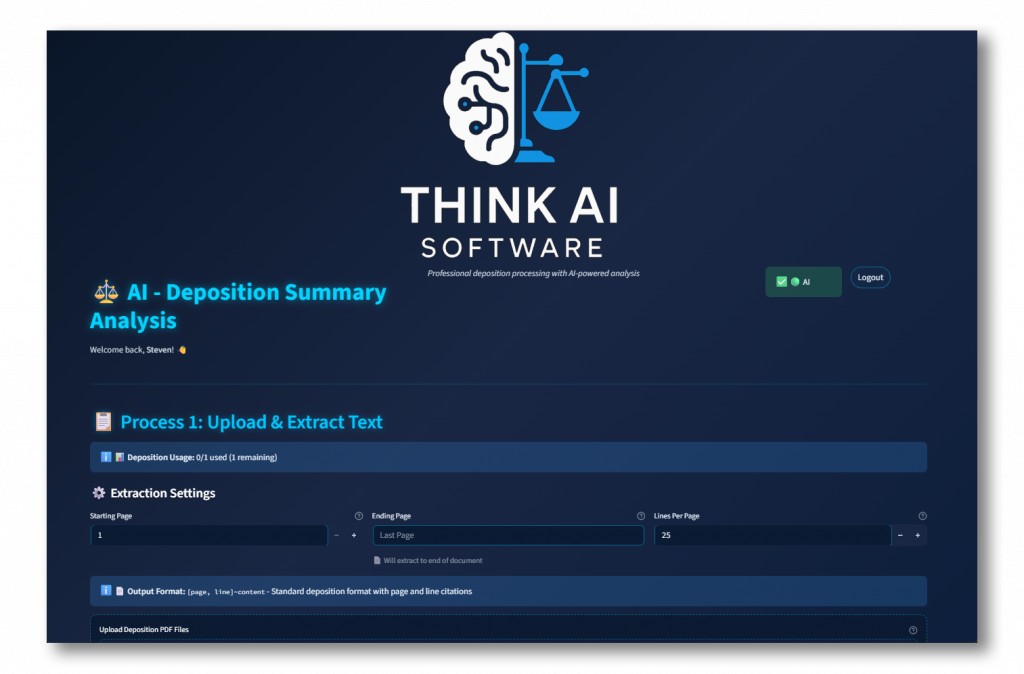
Processing a Deposition
Configure Extraction Settings
- Set your Starting Page (default is 1) – We recommend you choose the first page of testimony if not page 1
- Set your Ending Page (or select “Last Page”) – We recommend you choose the last page of testimony
- Set Lines Per Page (default is 25)
- Check “Will extract to end of document” if needed
Upload Your PDF File
- Click “Browse Files” or drag and drop your PDF file
- Maximum file size: 200MB
- Wait for the upload to complete
Ready to try? Please visit – https://app.thinkaisoftware.com/
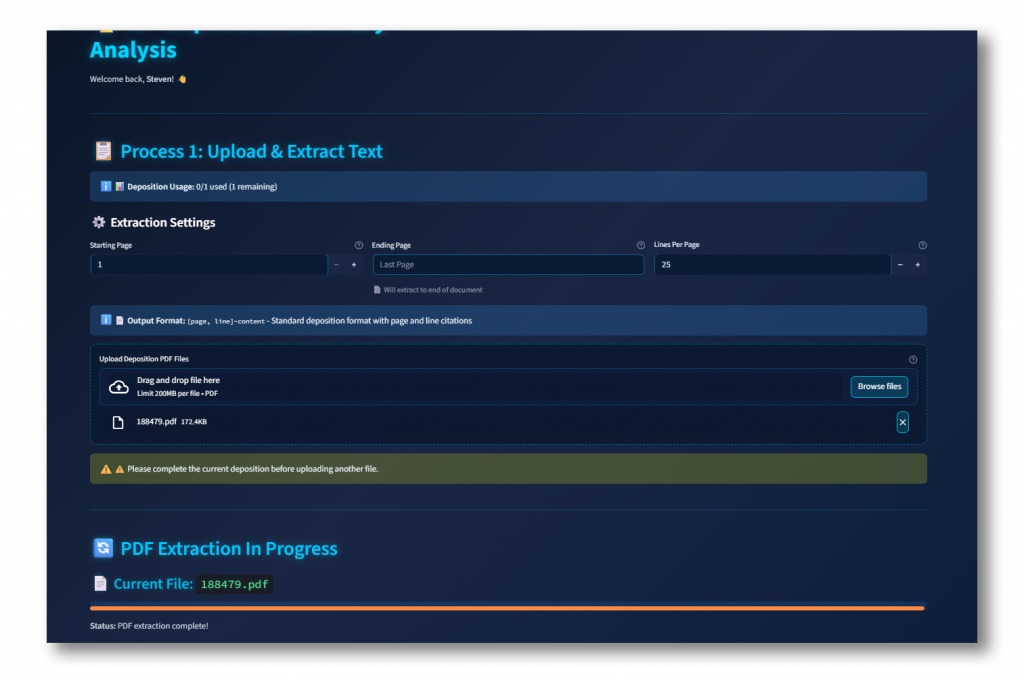 Monitor PDF Extraction
- Watch the progress bar under “PDF Extraction In Progress”
- Wait for “Status: PDF extraction complete!” message
Ready to try? Please visit – https://app.thinkaisoftware.com/
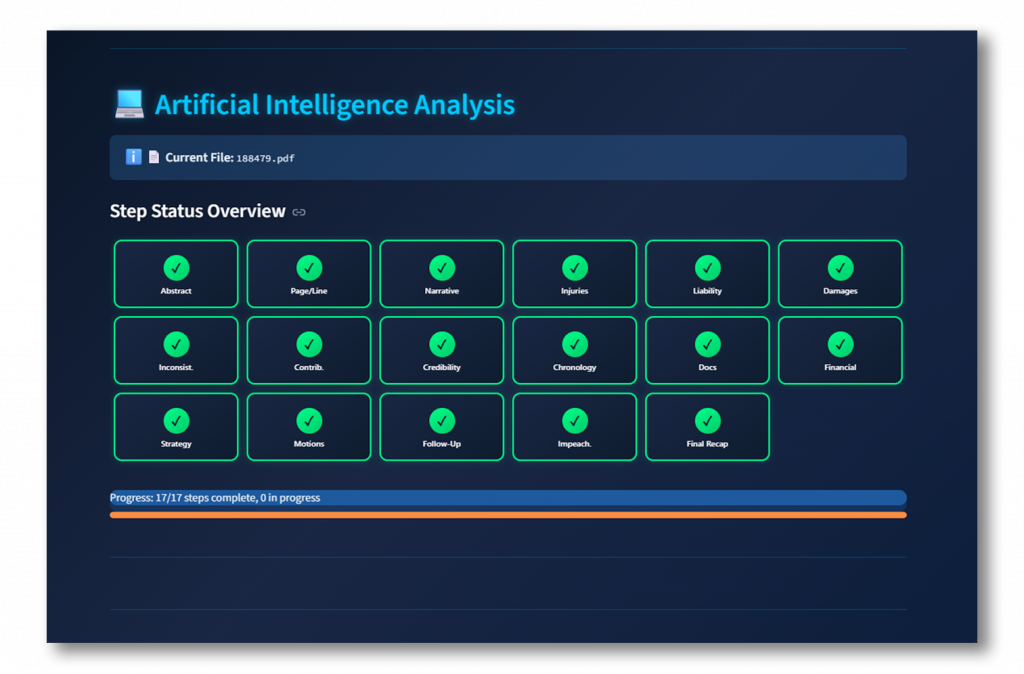
AI Analysis
- The system will automatically begin analyzing your document
- Monitor the “Step Status Overview” showing 17 analysis steps:
- Abstract, Page/Line, Narrative, Injuries, Liability
- Damages, Inconsistencies, Contributions, Credibility
- Chronology, Documents, Financial, Strategy
- Motions, Follow-Up, Impeachment, Final Recap
Ready to try? Please visit – https://app.thinkaisoftware.com/
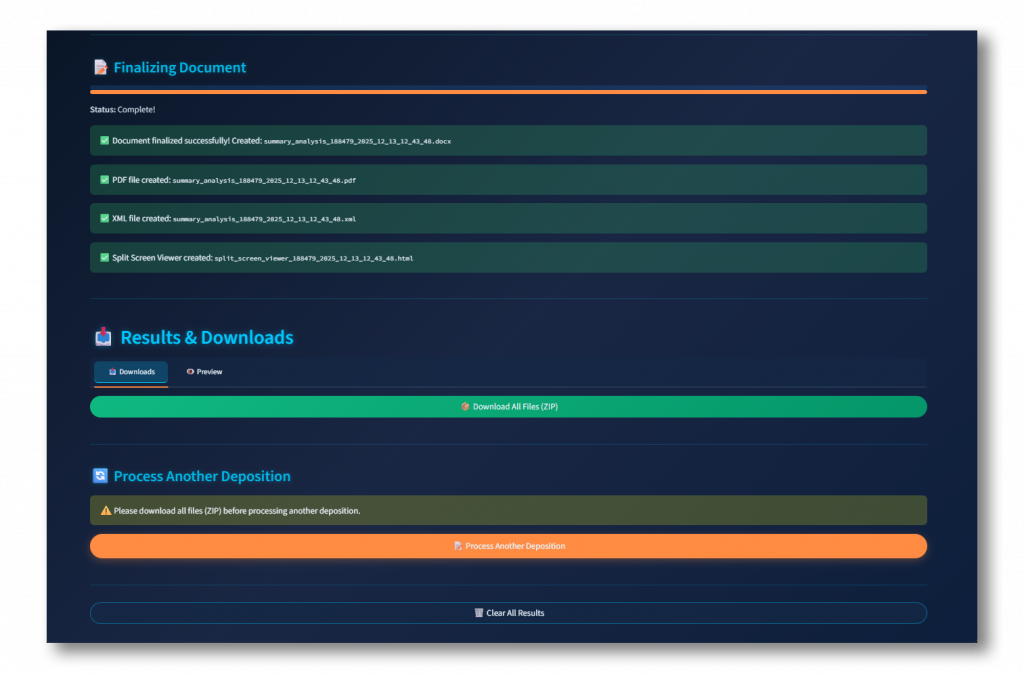
Document Finalization
- Wait for “Status: Complete!” message
- Four files will be created:
- Word document (.docx)
- PDF file (.pdf)
- XML file (.xml)
- Split Screen Viewer (.html)
Download Your Results
- Go to “Results & Downloads” section
- Click green “Download All Files (ZIP)” button
- Or click “Preview” tab to view results first
Process Another Deposition (Optional)
- Download all files before proceeding
- Click orange “Process Another Deposition” button
- Or click “Clear All Results” to start fresh
Ready to try? Please visit – https://app.thinkaisoftware.com/